How to Fix Text Typed With Caps Lock On? Quick Guide
Learn how to fix text typed with Caps Lock on using simple tools, shortcuts, and converters. Quickly change uppercase text to lowercase without retyping.
Quick Summary: Fix Text Typed With Caps Lock On
- Caps Lock mistakes can be fixed instantly without retyping
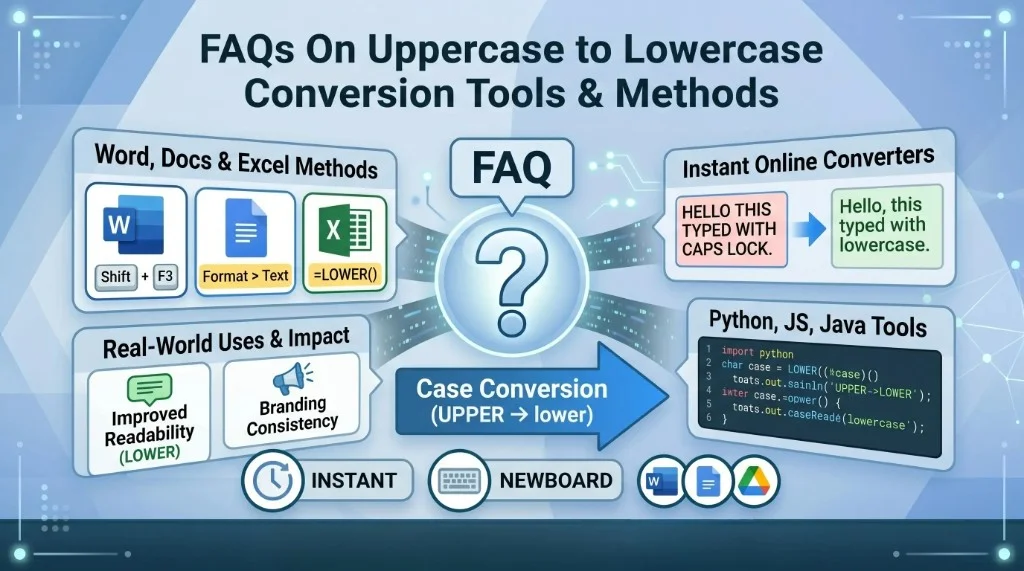
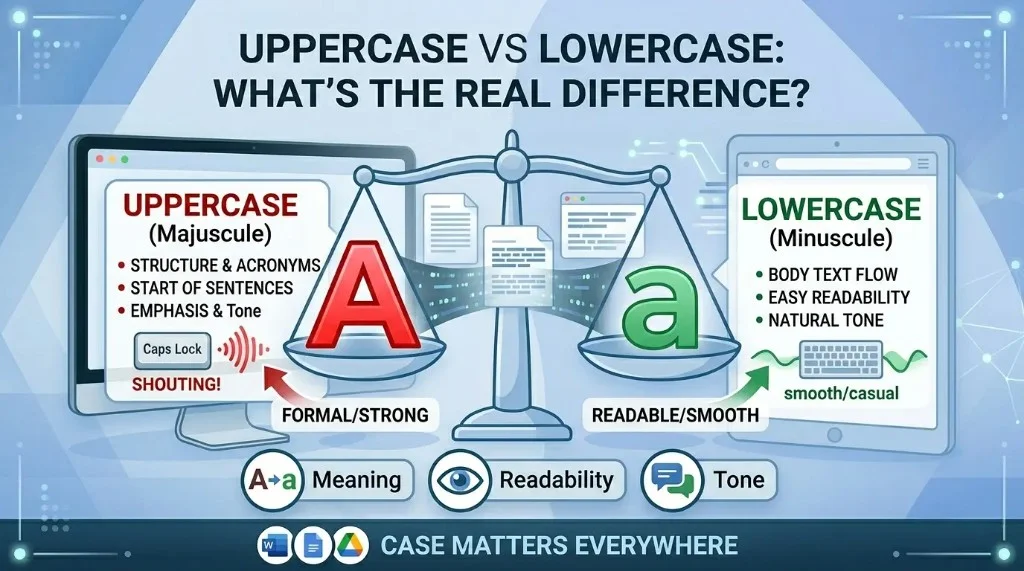
Instead of manually correcting each word, you can convert full uppercase text into lowercase or sentence case using quick formatting tools—see how uppercase and lowercase differ in writing and SEO before you pick a final format. - Online case converters are the fastest solution
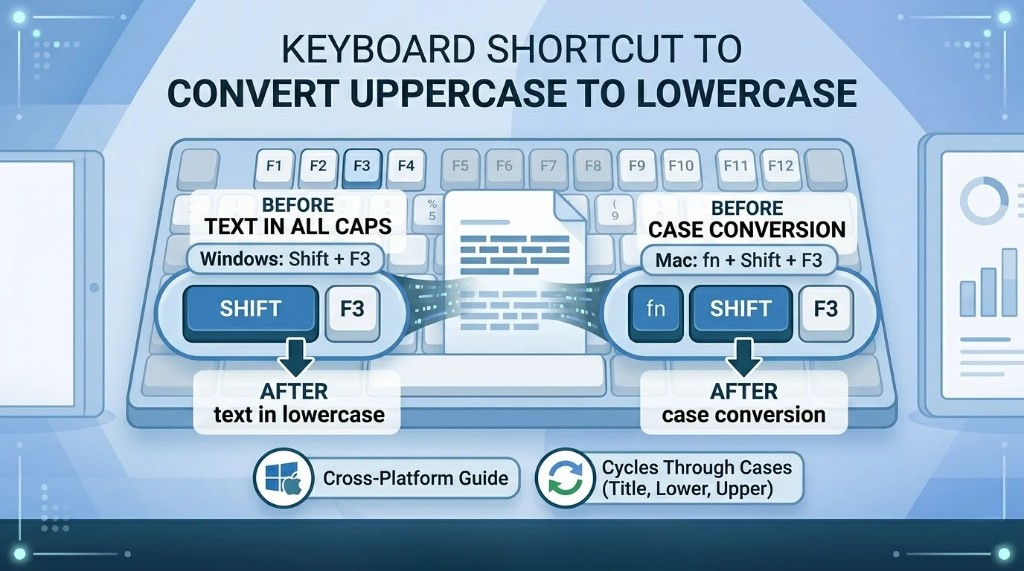
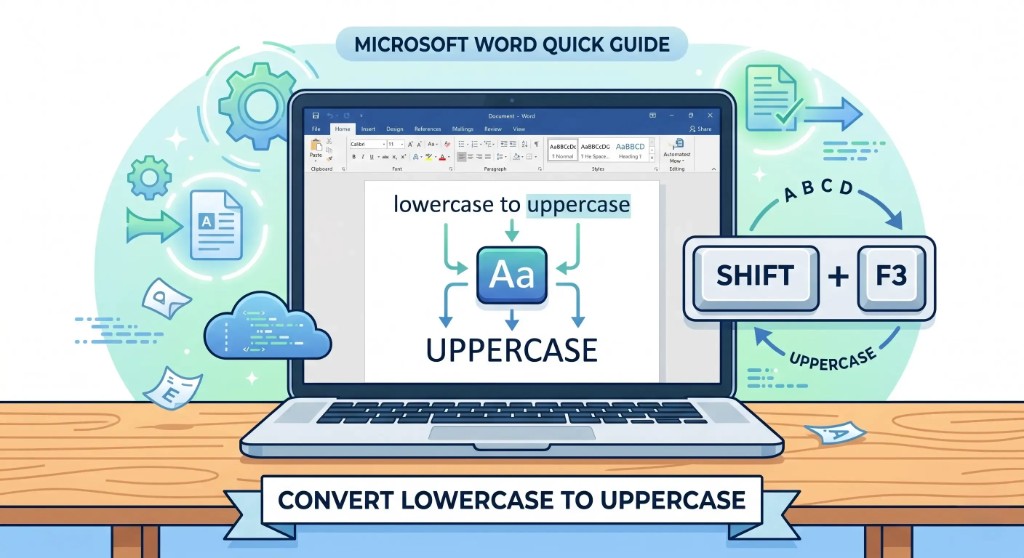
Copy-paste your text into a "caps lock to lowercase converter" tool and instantly change it to lowercase, uppercase, or title case in seconds. - Microsoft Word provides a built-in shortcut (Shift + F3)
By selecting text and pressing Shift + F3, you can toggle between uppercase, lowercase, and sentence case without leaving the document—our keyboard shortcut guide for changing text case in Word (and Mac) walks through the details. - Google Docs offers a simple formatting option
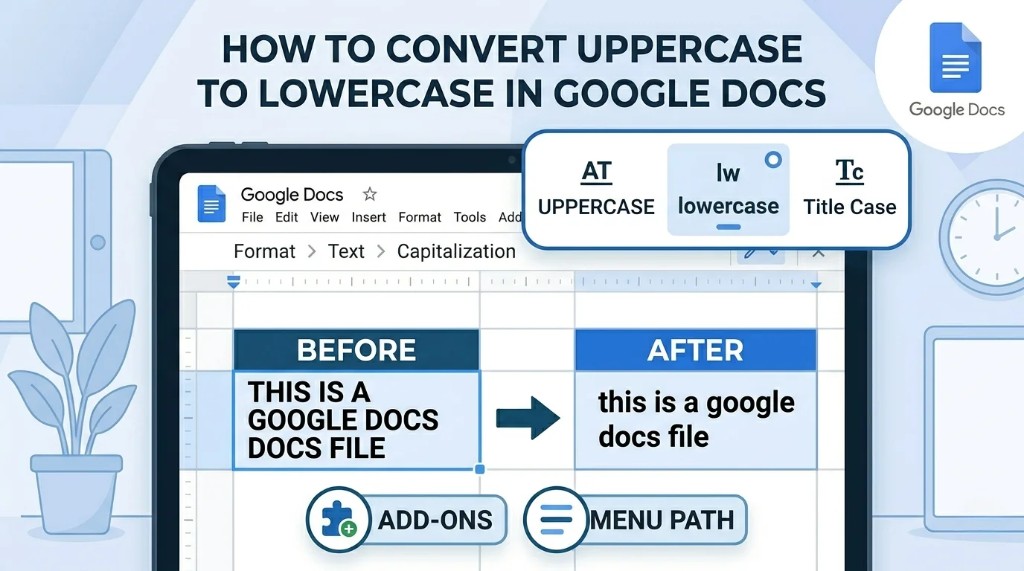
Under Format → Text → Capitalization, you can quickly switch text case—see our Google Docs case conversion guide for step-by-step screenshots. - Proper tools improve productivity for writers and SEO professionals
Using case converters saves time, reduces manual editing errors, and helps maintain consistent formatting across large content projects—browse the full case conversion tools FAQ for related helpers.
Introduction
Typing a full sentence only to realize Caps Lock was on is one of the most common typing mistakes. The good news is—you don't need to retype everything. Use our free uppercase to lowercase converter, editor shortcuts, or the methods below. For background on letter styles, see uppercase vs lowercase and the full tools and methods FAQ.
What Happens When Caps Lock Is On?
When Caps Lock is enabled, every letter you type becomes uppercase:
HELLO THIS IS A MISTAKE
This usually happens when:
- Caps Lock is accidentally turned on
- You are typing quickly and don't notice
- A keyboard shortcut is pressed unintentionally
Instead of rewriting everything, you can convert it instantly.
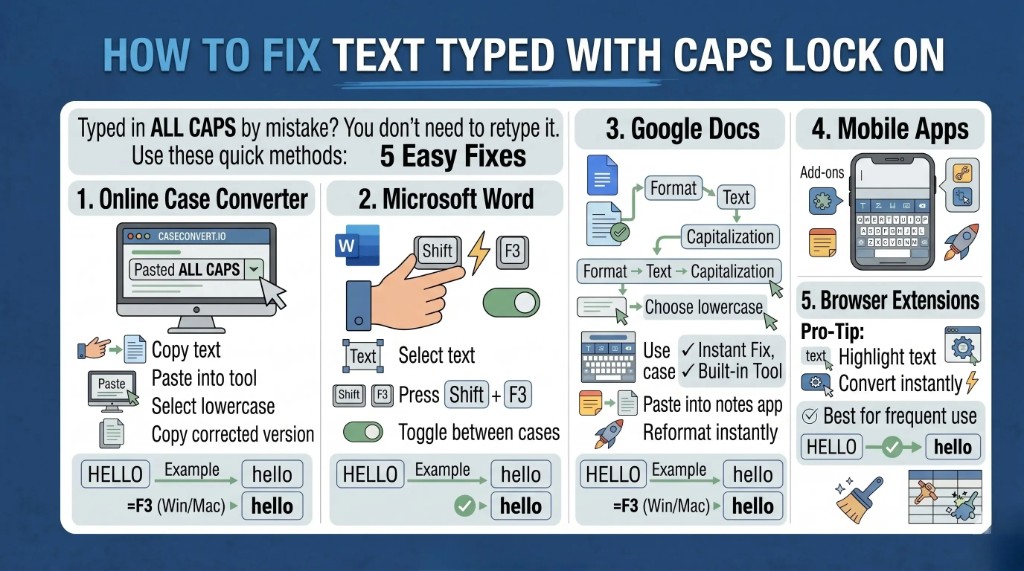
Caps Lock Fix Methods (Comparison Table)
| Method | Platform | Speed | Difficulty | Best For | Steps |
|---|---|---|---|---|---|
| Online Case Converter | Web / Any device | Very Fast | Very Easy | Quick fixes, bulk text | Copy → Paste → Convert → Copy back |
| Microsoft Word Shortcut (Shift + F3) | Windows / Word | Very Fast | Easy | Writers, office work | Select text → Press Shift + F3 |
| Google Docs Formatting | Web / Google Docs | Fast | Easy | Bloggers, students | Format → Text → Capitalization |
| Mobile Keyboard Apps | Android / iOS | Moderate | Easy | Social media users | Copy text → Use app options |
| Browser Extensions | Chrome / Edge | Fast | Medium | SEO/content professionals | Install → Highlight → Convert |
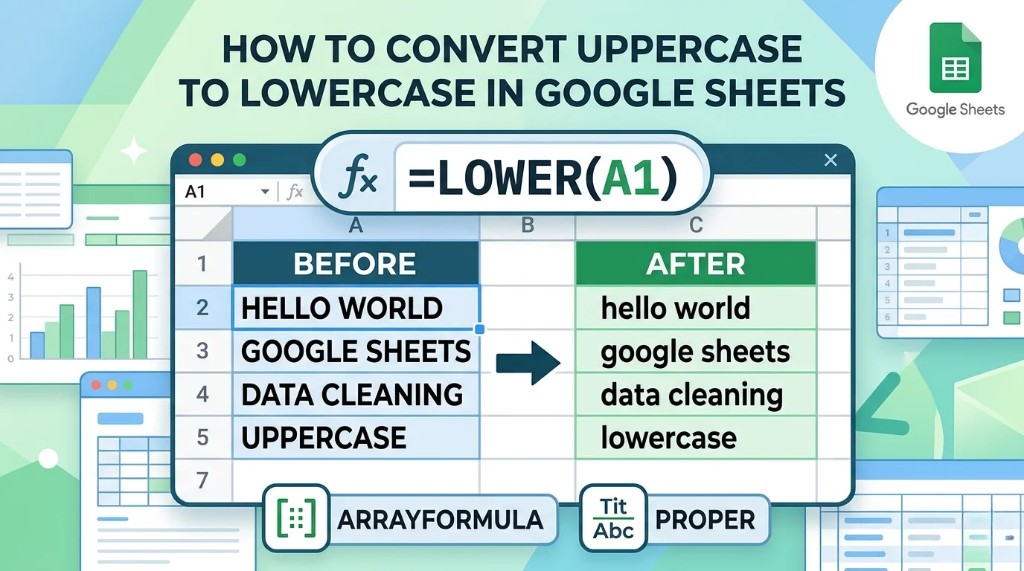
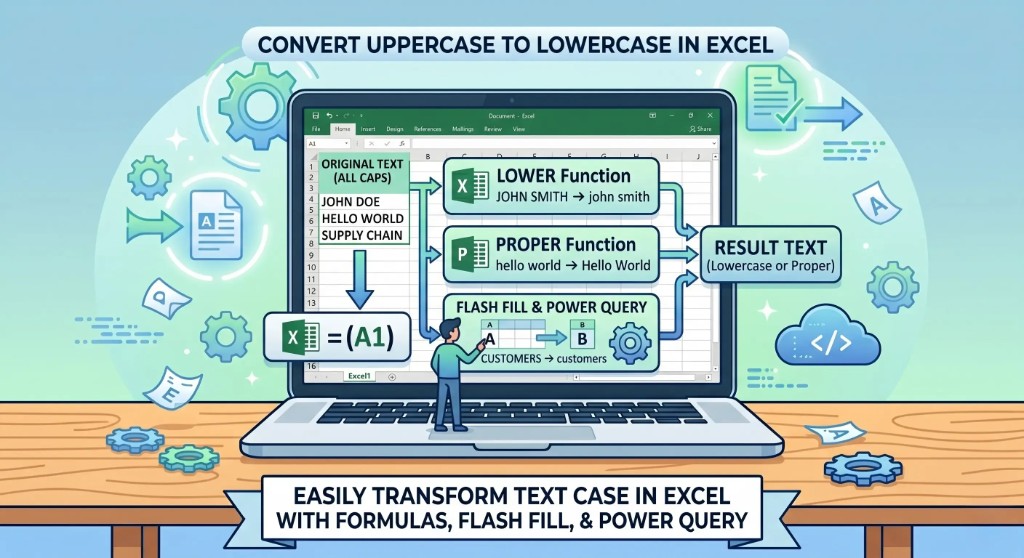
Different methods to fix Caps Lock text depend on your device and workflow. Online tools and Microsoft Word shortcuts are the fastest options, while Google Docs, mobile apps, and browser extensions are better suited for regular content creation and productivity tasks. If you normalize data in spreadsheets, the same idea applies: see how to convert uppercase to lowercase in Excel or how to do it in Google Sheets with LOWER and ARRAYFORMULA.
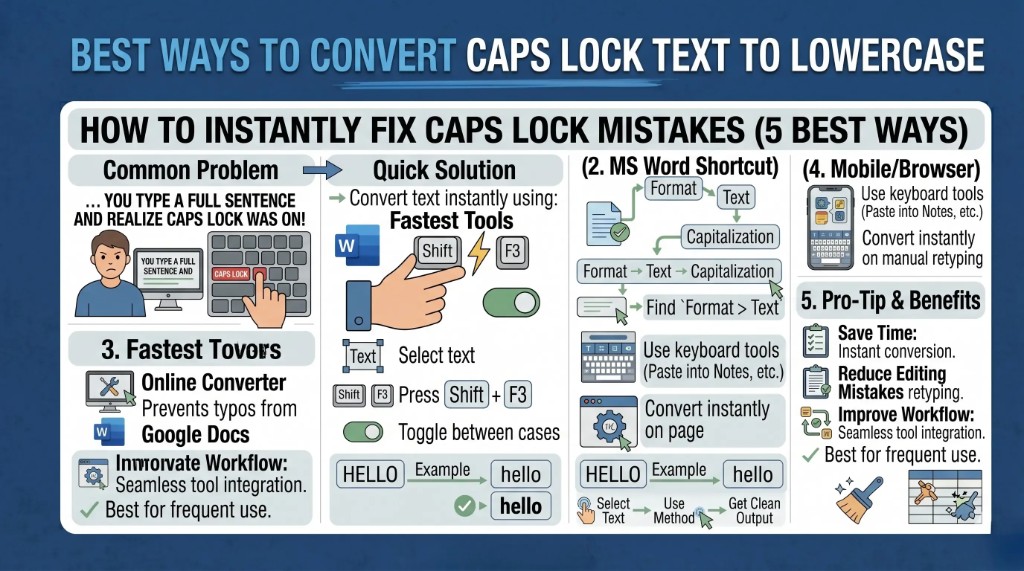
1. Use an Online Caps Lock to Lowercase Converter (Fastest Method)
The easiest way is using an online converter tool—open our free uppercase to lowercase converter and paste your text.
Steps
- Copy your text
- Paste it into a case converter tool
- Select "lowercase" or "sentence case"
- Copy the corrected text
Example
INPUT:
THIS IS A TEST MESSAGE
OUTPUT:
this is a test message
This method is perfect for quick fixes and works on any device.
2. Fix Caps Lock Text in Microsoft Word
If you are working in Microsoft Word, you don't need external tools—Word's own case tools also cover the opposite direction; see how to convert lowercase to uppercase in Word when you need to restore caps intentionally.
Steps
- Select the text
- Press Shift + F3
- Keep pressing until you get the desired format: UPPERCASE, lowercase, or Sentence case
This is one of the fastest built-in solutions for writers.
3. Convert Text in Google Docs
Google Docs also provides a built-in case changer. For a full walkthrough of the capitalization menu, read how to convert uppercase to lowercase in Google Docs.
Steps
- Highlight your text
- Go to Format
- Click Text → Capitalization
- Choose: lowercase, UPPERCASE, or Title case
This is very useful for bloggers and content writers.
4. Use Mobile Keyboard Tools
If you are typing on mobile:
- Some keyboards (like Gboard) offer case options
- You can copy text into notes apps and reformat it
- Some apps include built-in text converters
This is helpful for quick social media corrections.
5. Browser Extensions & Tools (For Frequent Use)
If you often deal with text formatting, browser extensions can save time—especially when you are cleaning headings and snippets for search. Pair that habit with our free meta tag analyzer so titles and descriptions stay consistent after you fix casing.
They allow you to:
- Convert text instantly
- Switch between uppercase, lowercase, and title case
- Work directly inside web apps
Ideal for SEO professionals, writers, and marketers.
Bonus Tip: Prevent Caps Lock Mistakes
To avoid the issue in the future:
- Turn off Caps Lock indicator sound/light alerts
- Use typing tools that warn about ALL CAPS
- Slow down when typing important content
Final Thoughts
Fixing text typed with Caps Lock on is quick and effortless once you know the right tools. Whether you use online converters, Word shortcuts, or Google Docs features, you can correct your text in seconds without retyping anything. Developers automating cleanup can also mirror the same logic in code—see how to convert uppercase to lowercase in JavaScript or Python lower() for a programming-oriented approach.
If you regularly work with content, learning these shortcuts can save you a lot of time and frustration.
FAQs: How to Fix Text Typed With Caps Lock On
1. How do I fix text typed with Caps Lock on?
You can fix it by using an online case converter, Microsoft Word shortcut (Shift + F3), or Google Docs formatting options. These tools quickly change uppercase text to lowercase or sentence case without retyping.
2. What is the fastest way to convert Caps Lock text to lowercase?
The fastest method is using an online "caps lock to lowercase converter." Just paste your text, select lowercase, and copy the corrected version instantly.
3. Can I fix Caps Lock text in Microsoft Word?
Yes. Select your text and press Shift + F3 to toggle between uppercase, lowercase, and sentence case. It's a built-in shortcut that works very quickly.
4. How do I change uppercase text in Google Docs?
Go to Format → Text → Capitalization, then choose lowercase, uppercase, or title case depending on your need.
5. Do I need to retype everything if Caps Lock is on?
No, you don't need to retype anything. You can use converters or built-in tools to fix the entire text instantly.
6. Is there a mobile app to fix Caps Lock text?
Yes, many keyboard apps like Gboard and text converter apps allow you to change text case directly on mobile devices.
7. Why does Caps Lock happen accidentally?
It usually happens when the Caps Lock key is pressed unintentionally while typing, especially on desktop keyboards or laptops.
8. Can I prevent Caps Lock mistakes in the future?
Yes, you can enable keyboard sound indicators, use typing awareness tools, or simply check the Caps Lock light before typing important content.
Share this article