How Can You Convert Uppercase to Lowercase in Excel Easily?
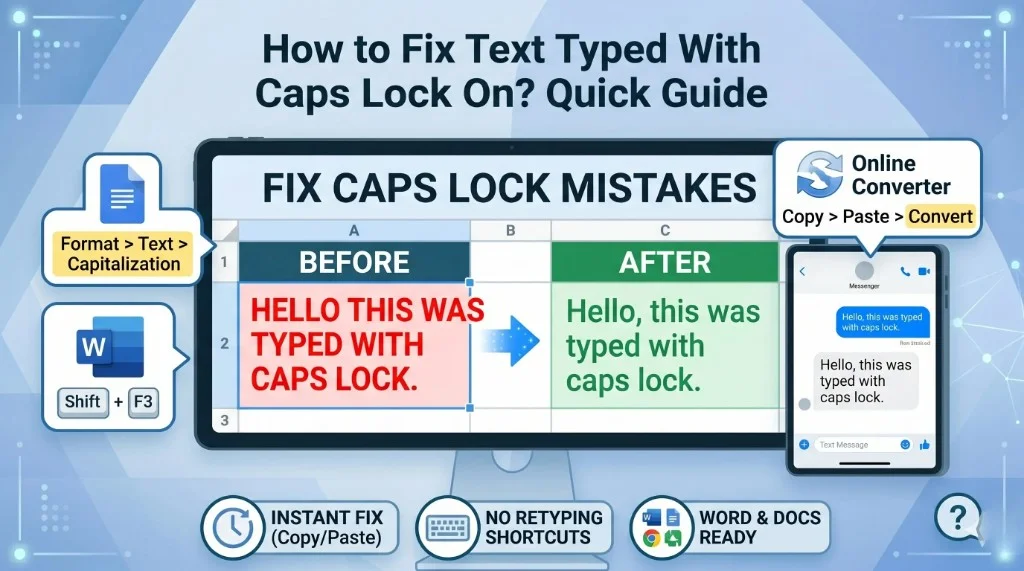
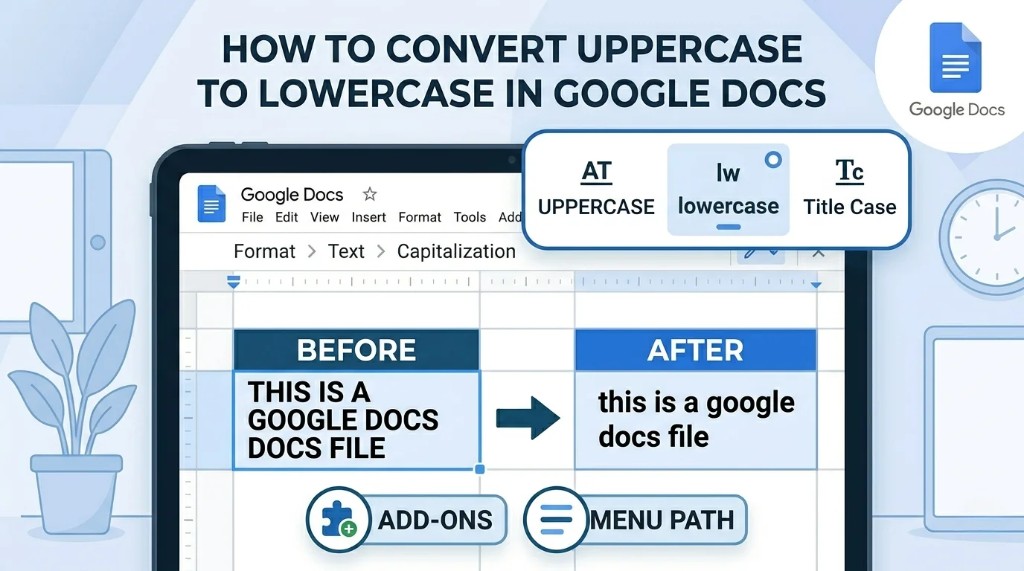
Converting text case in Excel is one of the most common cleanup tasks for reports, CRM exports, and imported spreadsheets. This guide shows practical ways to do it fast, with or without formulas. For prose in documents, use Google Docs capitalization or our caps lock fix guide when you are not working in a spreadsheet.
Quick Summary
- Use the LOWER Function for Fast Conversion
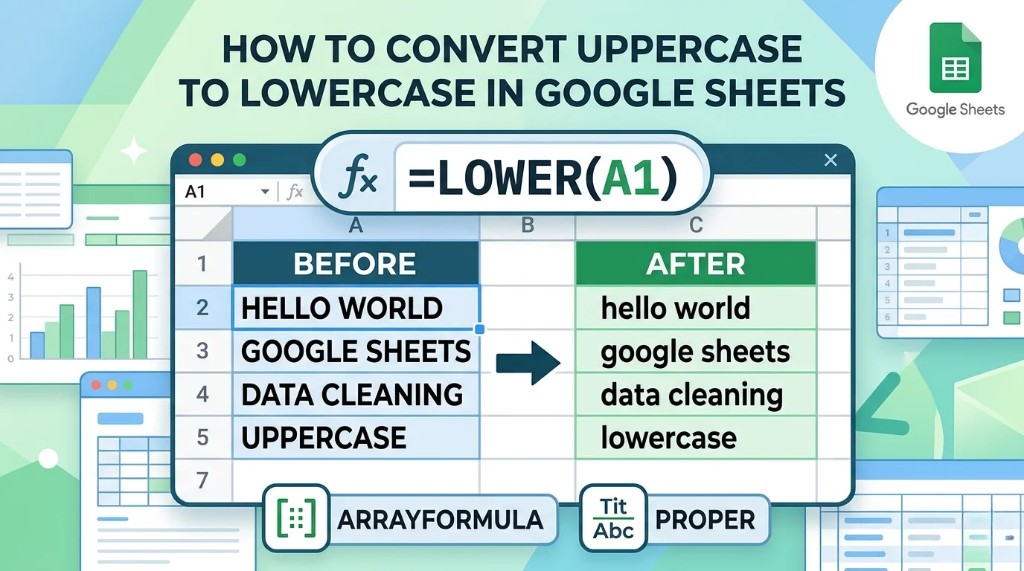
The LOWER formula is the easiest way to convert uppercase text into lowercase in Excel—it works like Google SheetsLOWER()for large datasets and consistent formatting. - PROPER Function Capitalizes First Letters Automatically
If you want cleaner formatting, like names or titles, the PROPER function converts text into proper case by capitalizing the first letter of every word. - Flash Fill Provides a No-Formula Solution
Excel's Flash Fill feature can quickly recognize formatting patterns and convert text cases automatically without writing formulas. - Power Query is Best for Large or Recurring Data Tasks
Power Query includes built-in text formatting tools that make uppercase-to-lowercase conversion easy for advanced users handling imported or automated datasets. - Proper Text Formatting Improves Spreadsheet Organization
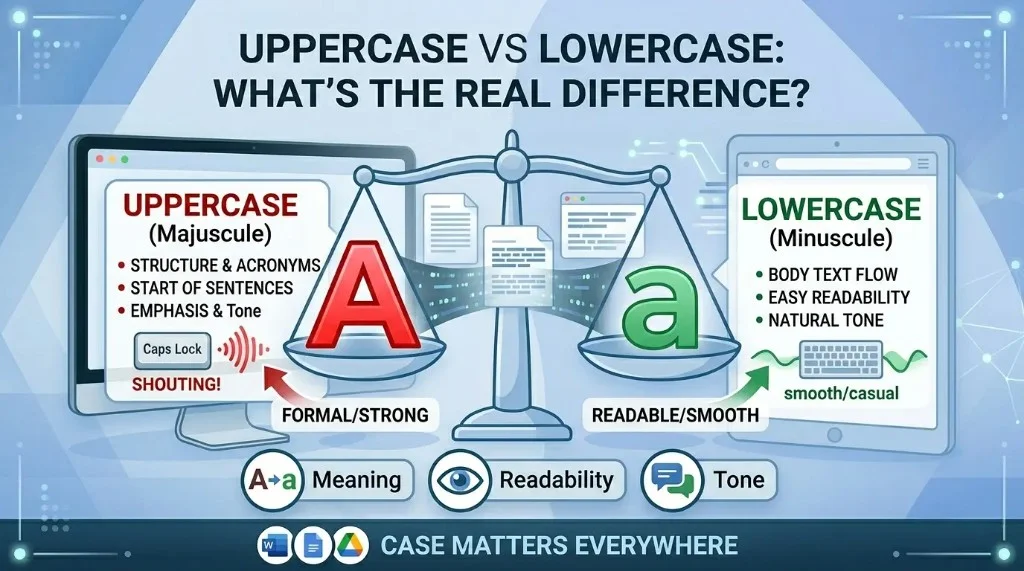
Consistent case formatting makes data easier to read, sort, and filter—see uppercase vs lowercase best practices or use our free online converter for quick paste-and-copy fixes.
How to Convert Uppercase to Lowercase in Excel
If your spreadsheet contains text in ALL CAPS and you want to make it lowercase, Excel provides a built-in formula for this.
Use the LOWER Function
The LOWER function converts all uppercase letters into lowercase letters—the same idea as Google Sheets LOWER(). For quick paste-and-copy fixes without formulas, use our free case converter.
Formula
=LOWER(A1)Example
| Original Text | Formula | Result |
|---|---|---|
| JOHN SMITH | =LOWER(A1) | john smith |
Steps
- Select an empty cell.
- Enter the formula:
=LOWER(A1)- Press Enter.
- Drag the fill handle down to apply it to other cells.
- Copy and paste values if you want to replace the original text.
This is the easiest way to convert upper case to lower case in Excel for large datasets.
Best Excel Formula to Change Uppercase to Lowercase
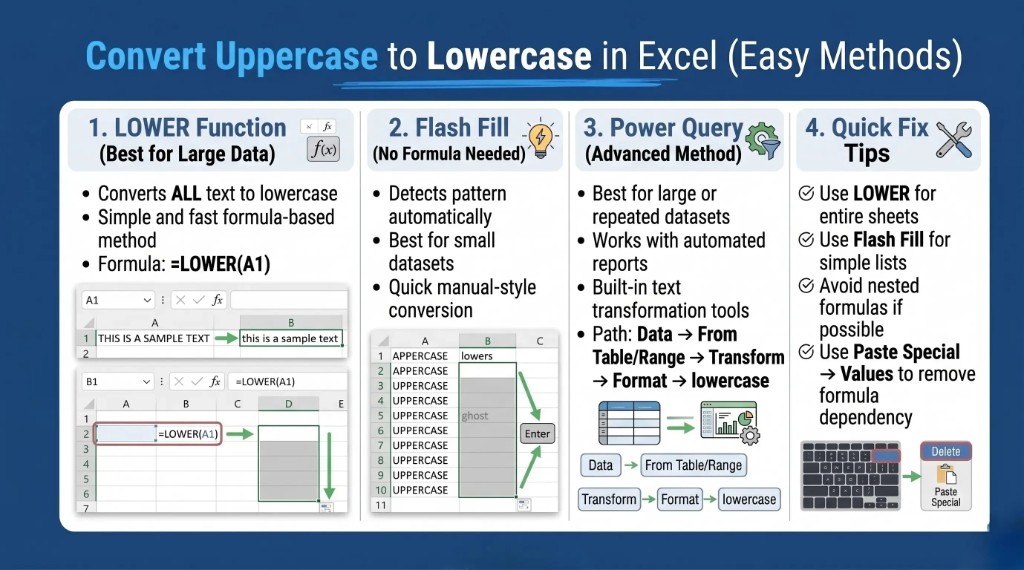
Excel has multiple case-conversion formulas depending on your formatting needs.
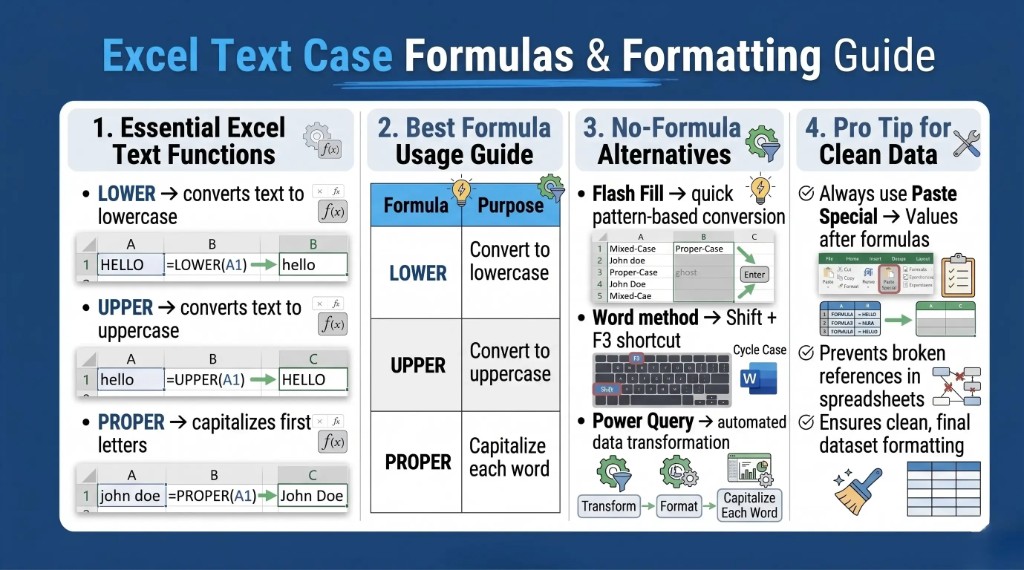
LOWER Function
Converts everything to lowercase.
=LOWER(A1)Result
HELLO WORLD → hello world
UPPER Function
Converts all text to uppercase.
=UPPER(A1)Result
hello world → HELLO WORLD
PROPER Function
Capitalizes the first letter of every word.
=PROPER(A1)Result
hello world → Hello World
Which Formula Should You Use?
| Formula | Purpose |
|---|---|
| LOWER | Convert text to lowercase |
| UPPER | Convert text to uppercase |
| PROPER | Capitalize first letters |
For uppercase to lowercase conversion in Excel, the LOWER formula is usually the best option because it is simple, fast, and works on large spreadsheets.
Convert Uppercase to Lowercase With First Letter Capitalized in Excel
Sometimes you want text to look cleaner and more professional instead of using all lowercase letters.
For example:
JOHN DOE → John Doe
The best way to do this is with the PROPER function.
Use the PROPER Formula
Formula
=PROPER(A1)Example
| Original Text | Result |
|---|---|
| CUSTOMER SUPPORT TEAM | Customer Support Team |
Steps
- Select a blank cell.
- Type:
=PROPER(A1)- Press Enter.
- Copy the formula for the remaining rows.
This method is perfect for names, addresses, titles, and customer data formatting.
Convert Upper Case to Lower Case Excel Without Formula
If you do not want to use formulas, Excel still provides a few quick solutions.
Method 1: Use Flash Fill
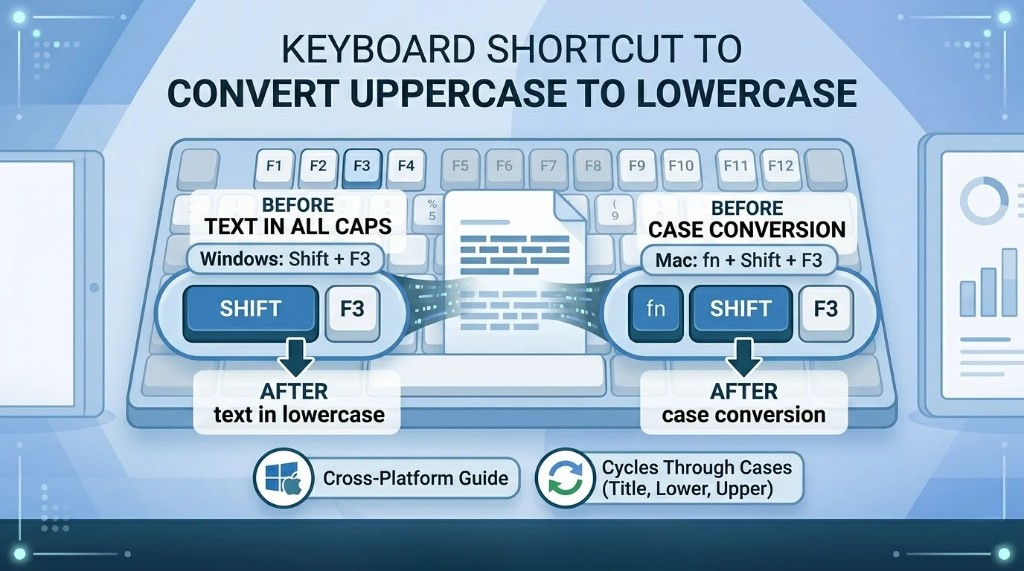
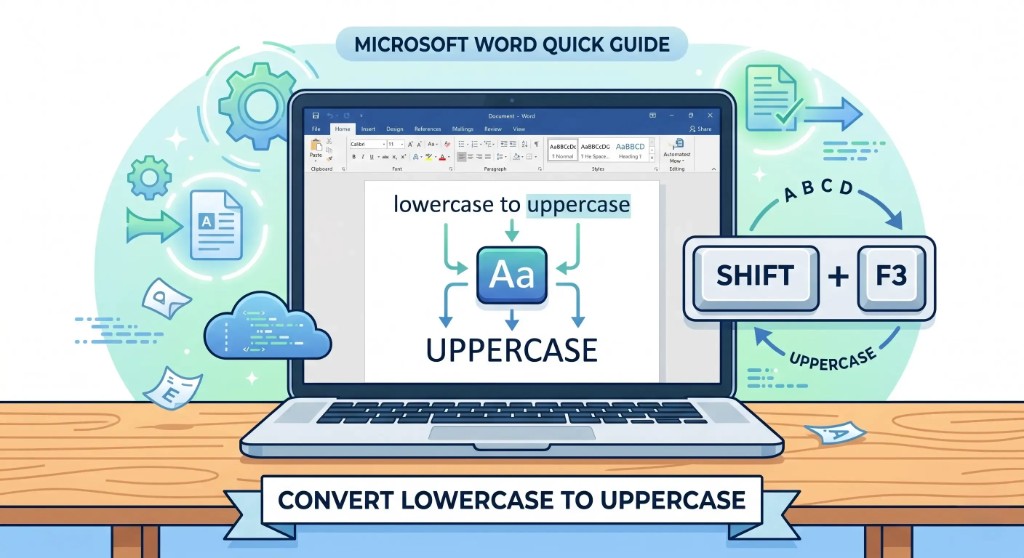
Flash Fill automatically detects patterns and formats text for you. Word users can also cycle case with Shift + F3 in Word or follow our keyboard shortcut guide.
Steps
- Type the lowercase version of the first cell manually.
- Start typing the next result.
- Excel may suggest the remaining values automatically.
- Press Enter to accept.
This works well for quick edits and small datasets.
Method 2: Use Microsoft Word
You can also change case using Word.
Steps
- Copy text from Excel.
- Paste it into Microsoft Word.
- Highlight the text.
- Press Shift + F3 until the desired case appears.
- Copy the text back into Excel.
Method 3: Use Power Query
For advanced users handling large data sets:
- Select your data.
- Go to Data > From Table/Range.
- Open Power Query Editor.
- Select the column.
- Choose:
- Transform
- Format
- lowercase
This method is useful for automated workflows and recurring reports.
Common Excel Case Conversion Mistakes
Forgetting to Paste Values
After using formulas, many users forget to paste values only, which can cause broken references later.
Applying Formulas to Wrong Cells
Always double-check the selected cell range before dragging formulas.
Using PROPER for Special Names
The PROPER function may incorrectly format names like:
- McDONALD → Mcdonald
- iPhone → Iphone
You may need manual corrections for brand names or special formatting.
Why Text Formatting Matters in Excel
Proper case formatting helps:
- Improve spreadsheet readability
- Maintain consistent data
- Create professional reports
- Clean imported data
- Standardize CRM exports
- Organize customer information
Consistent formatting also helps reduce errors when sorting or filtering data.
Frequently Asked Questions (FAQs): Case Conversion in Excel
How do I convert uppercase to lowercase in Excel?
Use the LOWER formula:
=LOWER(A1)This converts all uppercase letters into lowercase letters.
What is the fastest way to change text case in Excel?
The fastest method is usually Flash Fill for quick edits or the LOWER formula for large datasets.
Can I convert uppercase to lowercase without formulas in Excel?
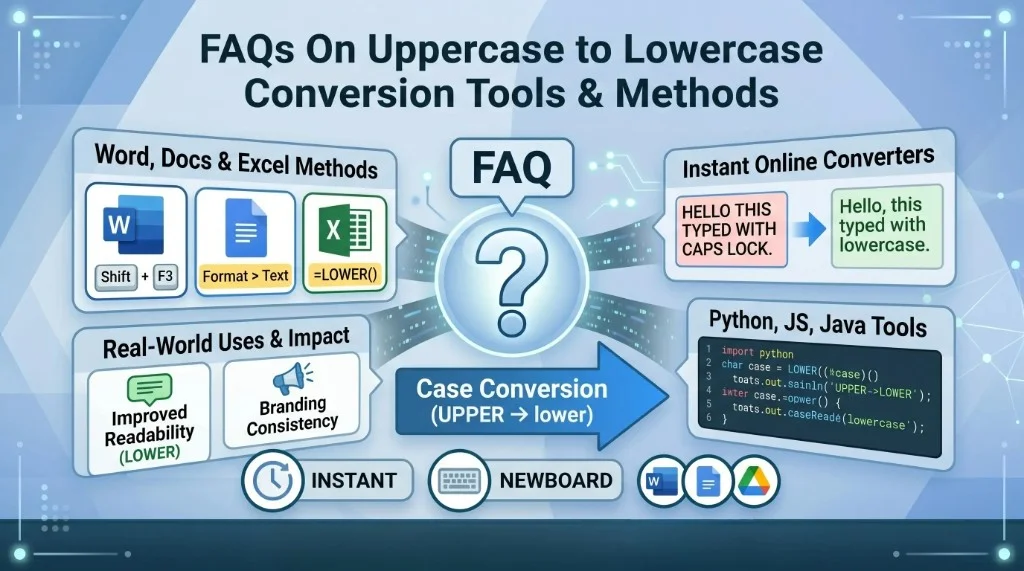
Yes, you can use Flash Fill, Power Query, or Microsoft Word change case. See our conversion tools FAQ for a full comparison.
Does Excel have a built-in button to change text case?
Unlike Microsoft Word, Excel does not have a direct text case button. You must use formulas or alternative methods.
What is the difference between LOWER and PROPER in Excel?
LOWER converts all text to lowercase, while PROPER capitalizes the first letter of each word.
Can Power Query change text to lowercase?
Yes, Power Query includes built-in text formatting options for lowercase, uppercase, and proper case conversion.
How do I replace formulas with actual text in Excel?
Copy the formula results and use Paste Special → Values to keep only the converted text.
How do I convert upper case to lower case in Excel?
You can use the LOWER function:
=LOWER(A1)This converts all uppercase letters in the selected cell into lowercase.
What is the best formula for uppercase to lowercase conversion in Excel?
The best formula is:
=LOWER(A1)It is simple, fast, and works well for large spreadsheets.
How do I capitalize the first letter while converting text in Excel?
Use the PROPER function:
=PROPER(A1)This converts text into proper case with the first letter capitalized.
Can I convert uppercase to lowercase in Excel without a formula?
Yes, you can use Flash Fill, Power Query, or Microsoft Word to change text case without formulas.
What does the LOWER function do in Excel?
The LOWER function converts all letters in a text string into lowercase letters.
Does Excel have a shortcut to change uppercase to lowercase?
Excel does not have a direct keyboard shortcut like Word. Most users use formulas or Flash Fill.
How do I apply the lowercase formula to multiple cells?
After entering the formula, drag the fill handle down to copy it across the entire column.
Can Flash Fill automatically change uppercase to lowercase?
Yes, Flash Fill can detect formatting patterns and automatically convert text into lowercase.
Why is my Excel formula showing instead of the result?
This usually happens when the cell format is set to Text. Change the format to General and re-enter the formula.
How do I replace original text with lowercase text in Excel?
Copy the formula results and use Paste Special → Values to replace the original text.
Can Power Query convert text case in Excel?
Yes, Power Query has built-in options to convert text into lowercase, uppercase, or proper case.
Need to convert text instantly without opening Excel? Try our free uppercase to lowercase converter.
Open the free converterShare this article